Can You Watch Apple TV in Your Car? Apple TV and CarPlay
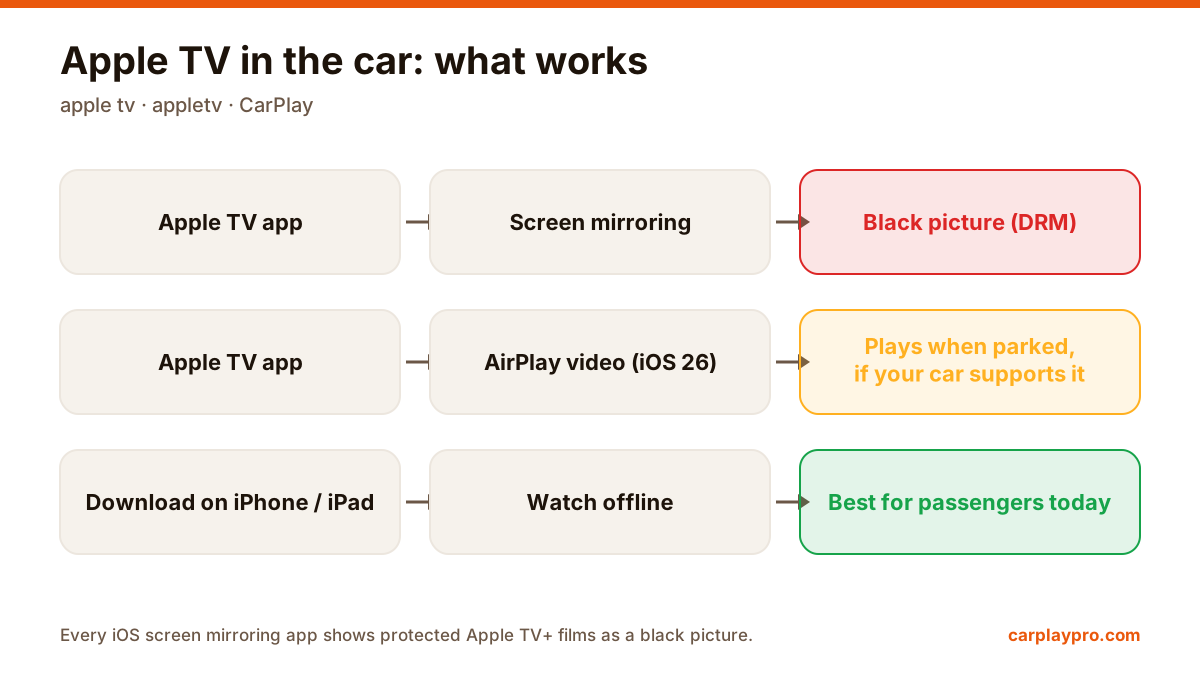
Apple TV in the car is possible, but not the way most people expect. What works with CarPlay, why mirroring shows a black screen, and the real options.
The real ways to play video on a car screen with an iPhone: USB files, screen mirroring, AirPlay in iOS 26, AI boxes and tablets, with data use for each.
 Carplay Pro 3 min read
There are five practical ways to play video on a car screen: the head unit’s own USB player, a screen mirroring app on the iPhone, AirPlay video in iOS 26, a CarPlay AI box, or a tablet for the back seat. Which “car video player” is right depends less on the car and more on where your videos come from: files, streaming apps, or live TV.
We see the same mistake again and again: people buy hardware first and only then discover it does not play what they wanted. Start from the source of your videos and work backwards.
Many factory and aftermarket head units can play video files from a USB stick, usually only while parked. Formats vary by brand; MP4 with H.264 video is the most widely supported.
Good for: downloaded films on a long trip, no mobile data. Not good for: anything streamed. And in many cars the USB video player is disabled as soon as CarPlay is connected, so you switch back and forth.
A mirroring app sends the iPhone screen to the car display over CarPlay. Whatever plays on the phone, YouTube, a sports app, your photo library, a video you recorded, appears on the dashboard.
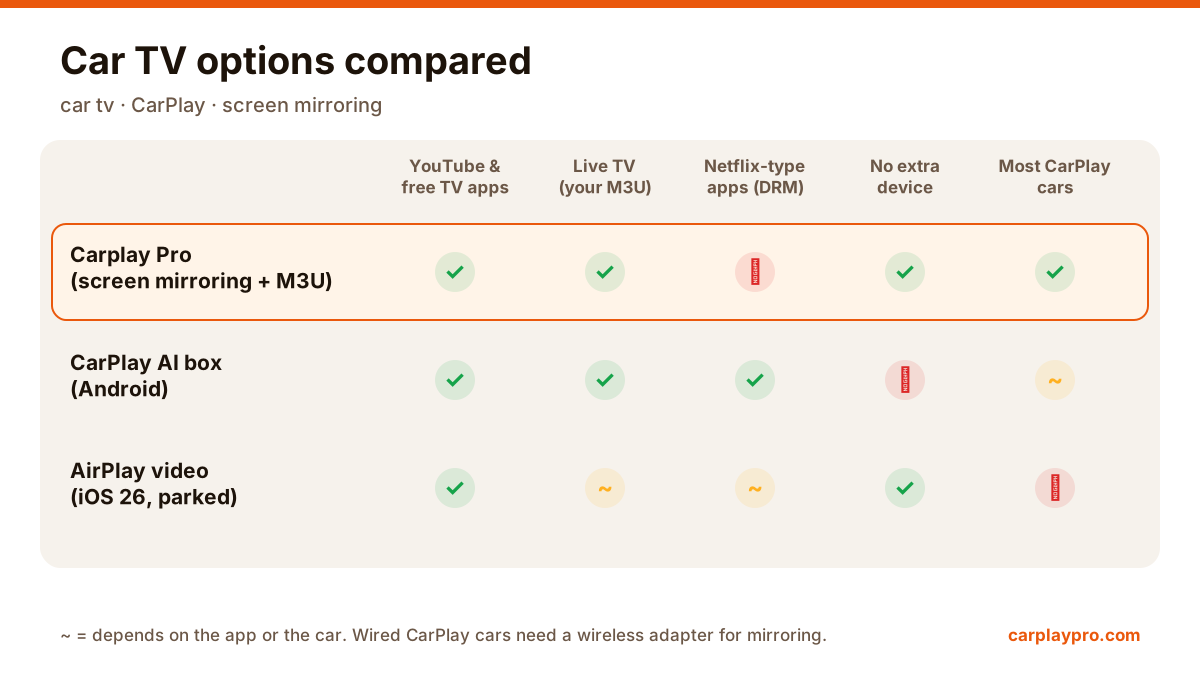
Good for: streaming apps without copy protection, your own videos, live TV from your M3U playlist. Limit: protected films (Apple TV+, many paid services) show a black picture when mirrored.
This is the most flexible option for iPhone owners, and the one Carplay Pro is designed for: one app turns the car display into a video screen for the phone, with landscape full-screen viewing and car-sized controls. No new hardware if your car has wireless CarPlay; a small wireless adapter if it only has wired CarPlay.
iOS 26 lets CarPlay receive AirPlay video while the car is parked, and stops it when you drive off. It needs support from the car maker, and very few cars have it switched on so far. If yours does, it is the official route for apps that support AirPlay. Our article on Apple TV in the car covers the details.
An AI box is a small Android computer that plugs into the car’s wired CarPlay port and runs its own apps, including streaming services. It needs its own internet connection, often ships with an older Android version, and costs considerably more than an app. A plain wireless CarPlay adapter is a different product and cannot play video apps at all; do not confuse the two.
For children on a long trip, an iPad on a headrest mount with downloaded episodes is still hard to beat: no driver distraction, no mobile data, and everyone in the back can have their own screen.
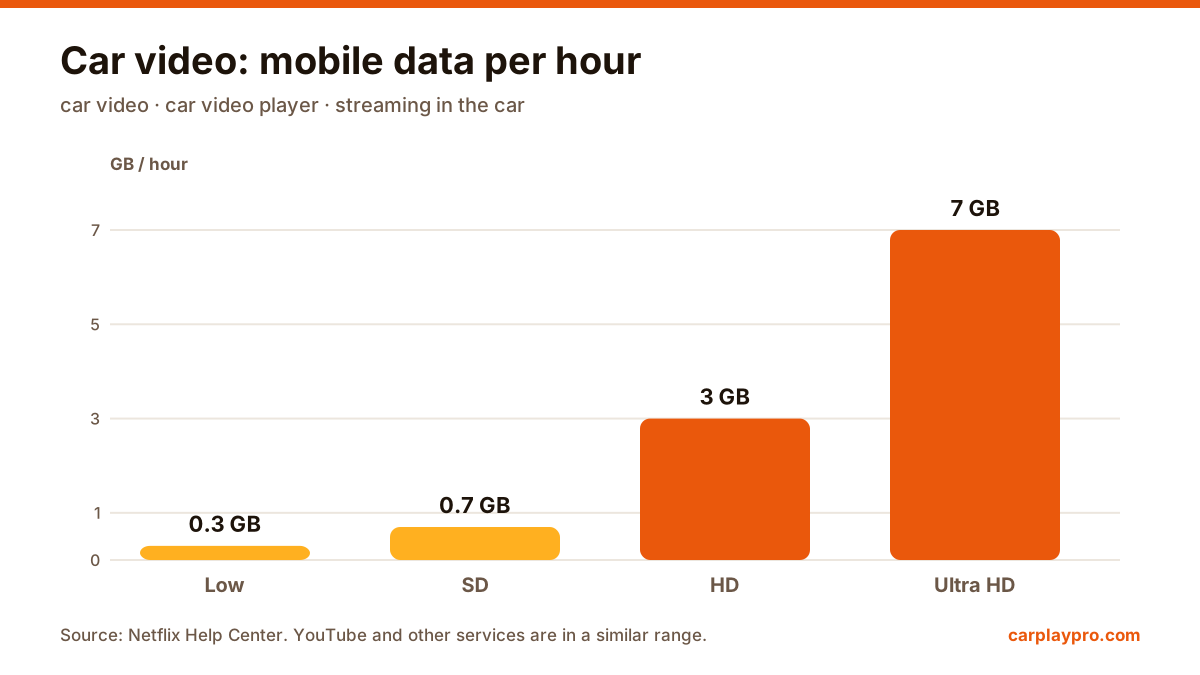
Car video player data use per hour, based on Netflix’s published figures. Most streaming services are in the same range.
A car display rarely needs more than SD or 720p. On mobile data, dropping from HD to SD cuts usage by roughly three quarters, and on most dashboards you will hardly see the difference.
| Your videos come from | Best option |
|---|---|
| Files you downloaded | Head unit USB player, or the iPhone with mirroring |
| YouTube and free streaming apps | Screen mirroring (Carplay Pro) |
| Live TV from your IPTV subscription | Carplay Pro with your M3U playlist |
| Netflix-type services | AI box, or AirPlay video if your car supports it |
| Kids in the back | Tablet with downloads |
Every option here is for parked moments and passengers. The driver should never watch video while driving, and local laws apply everywhere. If live channels are your main interest, read our guide to car TV on the iPhone.
Apple TV in the car is possible, but not the way most people expect. What works with CarPlay, why mirroring shows a black screen, and the real options.
Want car TV on the dashboard display? The real options for watching TV in your car with an iPhone, what each needs, and which ones actually work.
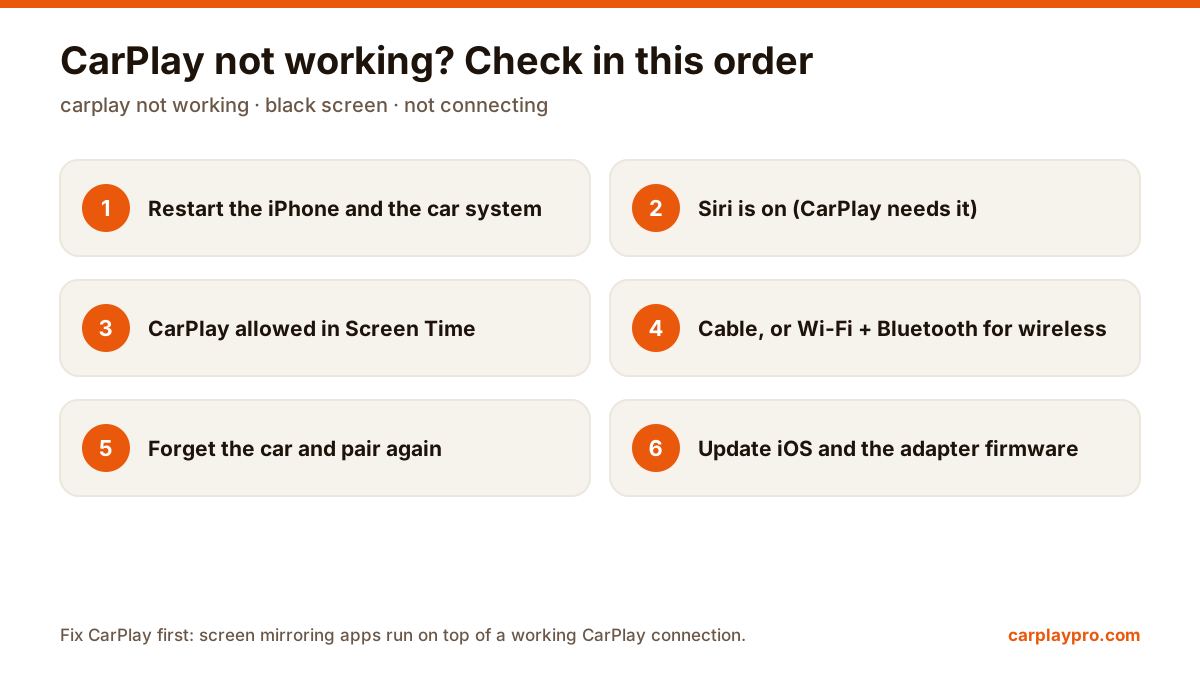
CarPlay not connecting, black screen or dropping out? Work through these fixes in order, from Siri and Screen Time settings to cables and adapter firmware.