Can You Watch Apple TV in Your Car? Apple TV and CarPlay
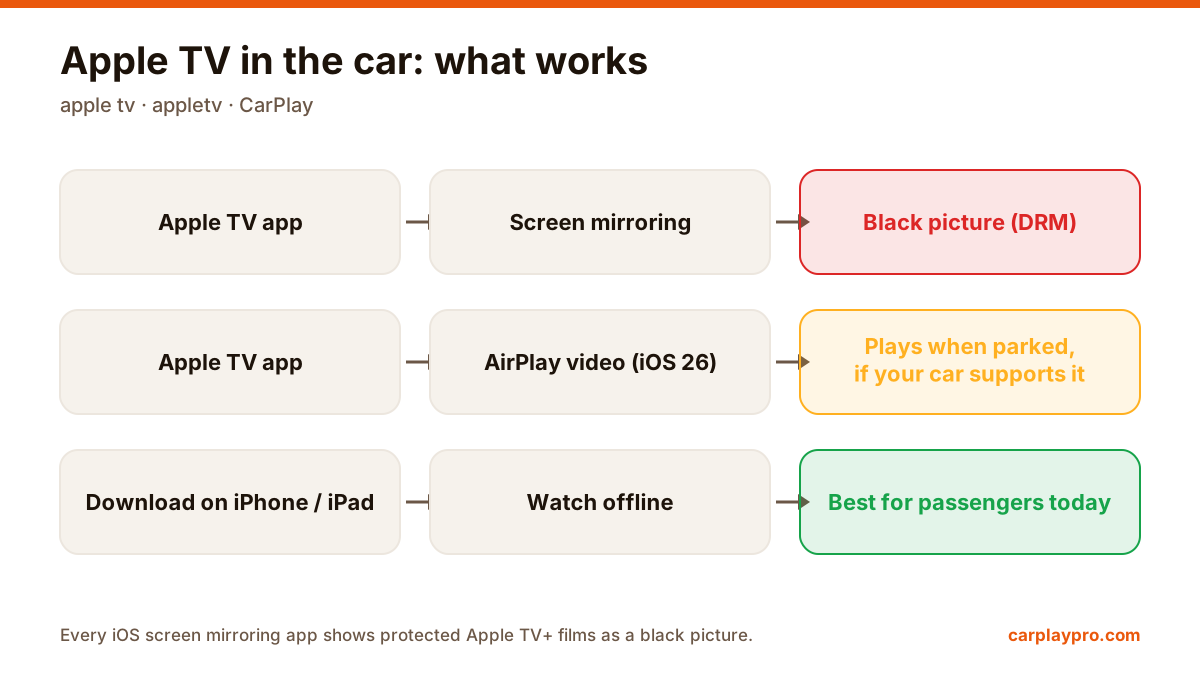
Apple TV in the car is possible, but not the way most people expect. What works with CarPlay, why mirroring shows a black screen, and the real options.
Want car TV on the dashboard display? The real options for watching TV in your car with an iPhone, what each needs, and which ones actually work.
 Carplay Pro 4 min read
There is no TV tuner in CarPlay, so “car TV” on an iPhone means one of three things: mirroring the phone’s screen to the car display, playing your own IPTV playlist through an app, or adding a separate Android box to the car. Which one suits you depends on what you want to watch and what your car supports.
People search for this in many ways, “car tv”, “cartv”, “TV in car”, “car tv app”, but they usually want the same thing: a show or a match on the big screen while the car is parked, or something for the passengers on a long trip. After years of watching people fight with adapters, boxes and settings menus, our advice is simple: start with the option that uses the phone you already have, and only buy hardware if that falls short.
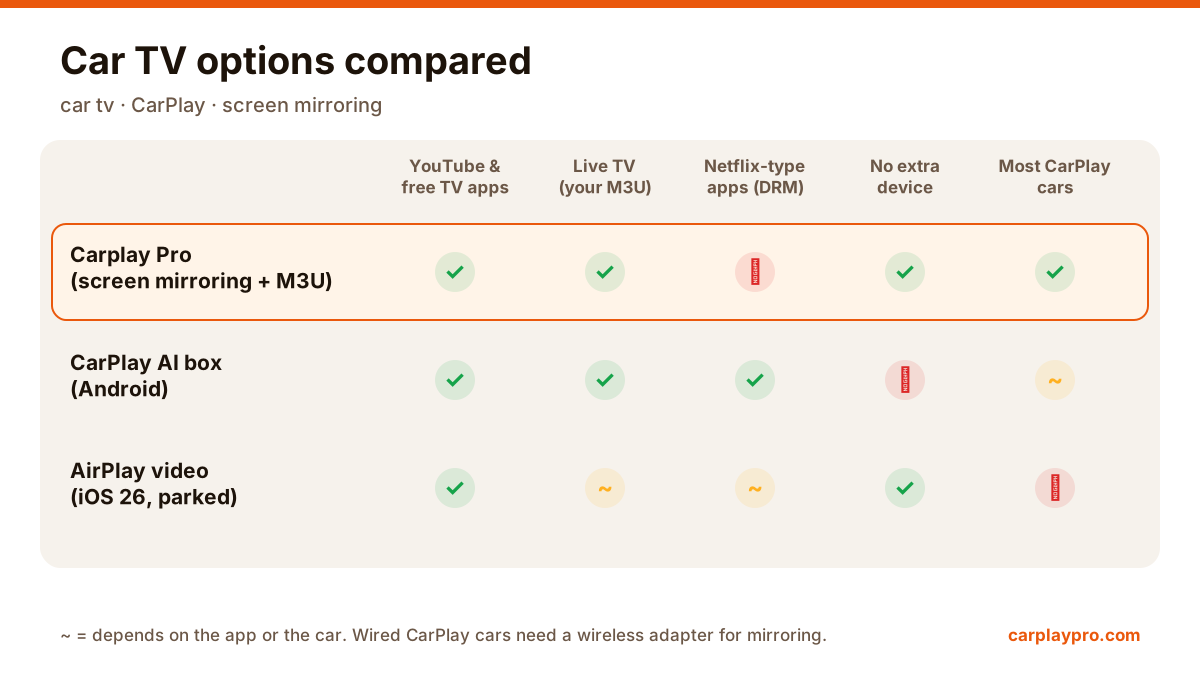
Car TV on CarPlay at a glance: what each option can show, and what it needs.
CarPlay is built for driving: maps, music, podcasts, calls and messages. Apple only lets certain app categories appear on the car display, and TV and video apps are not among them in normal CarPlay. That is why you will not find a “TV” icon on your CarPlay home screen, whatever apps you have on the phone.
With iOS 26, Apple added AirPlay video to CarPlay, but only while the car is parked and only if the car maker switches it on in the head unit. In practice, very few cars support it so far, so most people still need one of the options below.
A screen mirroring app sends a copy of your iPhone screen to the car display. Open a TV channel’s own app, YouTube, a sports app or a live stream on the phone, and the same picture appears on the dashboard.
You need: a car with wireless CarPlay, or wired CarPlay plus a wireless CarPlay adapter, and a mirroring app such as Carplay Pro.
Good for: free TV channel apps, YouTube, sports highlights, news streams.
This is the route we recommend to most people, and it is exactly what Carplay Pro was built for: one app on the iPhone, no extra box, and it covers both “car TV” needs at once, because the same app mirrors your screen and plays your own M3U channels. Setup takes a couple of minutes, and there is nothing to install in the car.
Limitation: some paid streaming services protect their films and series against screen capture. When you mirror them, the sound plays but the picture stays black. That is a choice by the streaming service, not a fault in the car.
Our step-by-step guide on CarPlay screen mirroring explains how it works and what to expect.
If you already pay for an IPTV service, it usually gives you an M3U playlist link. A player app that supports M3U can load your channels and show them on the car screen. Carplay Pro can do this as an extra feature. It does not provide any channels; you bring a playlist you have the right to use.
Good for: live channels from a subscription you already have.
Watch out for: unlicensed “free IPTV” lists. They are illegal in many countries and often stop working without warning. The full setup is in our guide to watching IPTV in the car with an M3U playlist.
A CarPlay “AI box” is a small Android computer that plugs into the car’s CarPlay USB port. It runs its own apps, such as YouTube or Netflix, and uses the CarPlay connection as a display. It does not use your iPhone at all.
Good for: people who want streaming apps in the car without involving the phone.
Downsides: it costs more than an app, many boxes ship with older Android versions, it needs its own internet connection (usually your phone’s hotspot or a SIM card), and it only works in cars with wired CarPlay.
| What you want | Best option |
|---|---|
| YouTube, free TV apps, sports clips | Screen mirroring app |
| Live channels from your IPTV subscription | M3U player (IPTV) |
| Netflix and similar services without the phone | AI box |
| Built-in, official video | AirPlay video in iOS 26, if your car supports it |
TV and video on the car screen are for when the car is parked, or for passengers. The driver should never watch while driving, and local traffic laws always apply. Good moments are a lunch stop, waiting outside school or the airport, or the forty minutes at an EV charger.
If you are mainly interested in films, our overview of car video player options compares the ways to play videos on the car screen.
Apple TV in the car is possible, but not the way most people expect. What works with CarPlay, why mirroring shows a black screen, and the real options.
The real ways to play video on a car screen with an iPhone: USB files, screen mirroring, AirPlay in iOS 26, AI boxes and tablets, with data use for each.
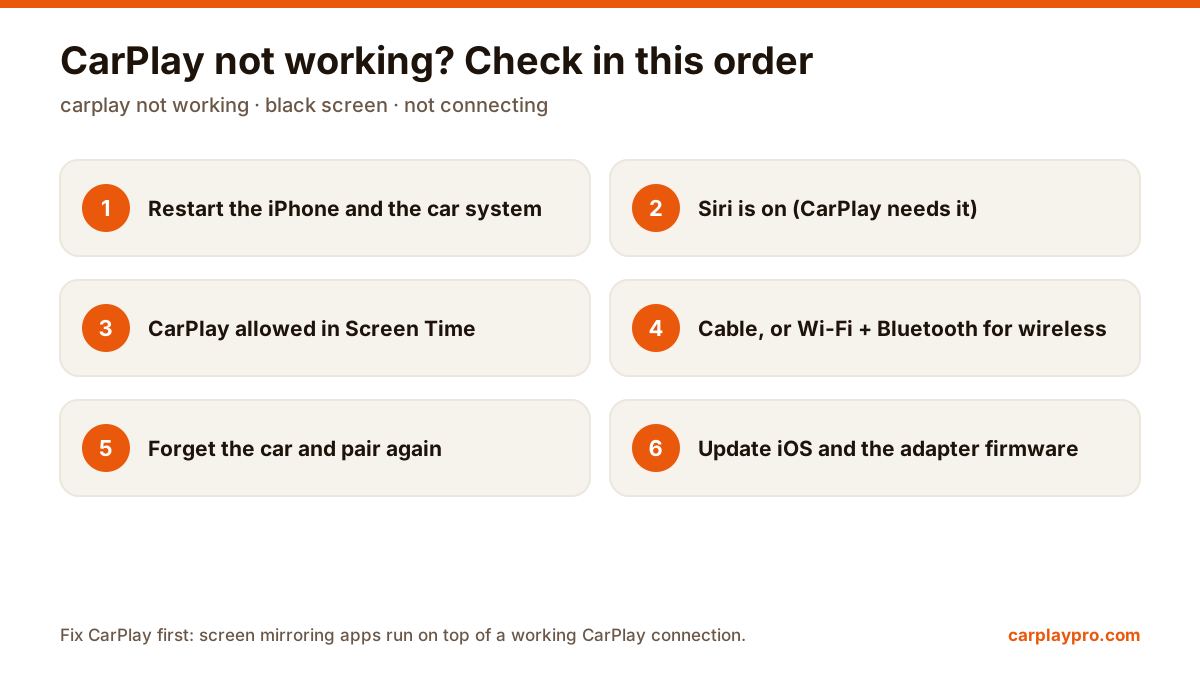
CarPlay not connecting, black screen or dropping out? Work through these fixes in order, from Siri and Screen Time settings to cables and adapter firmware.