Can You Watch Apple TV in Your Car? Apple TV and CarPlay
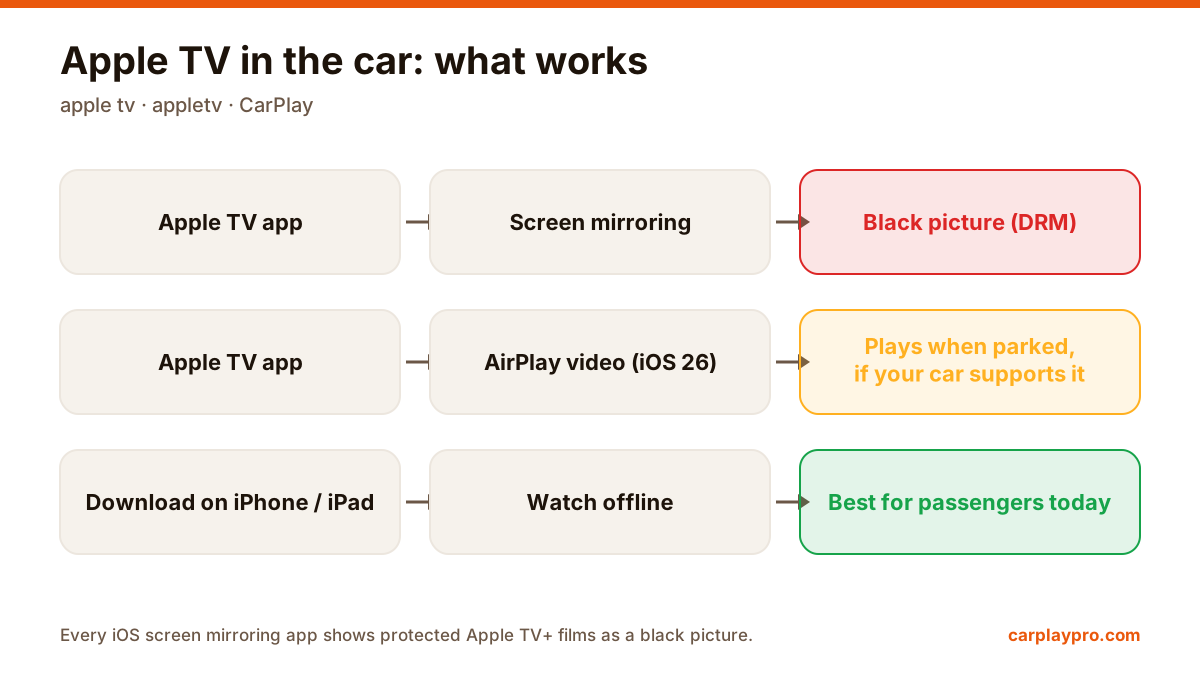
Apple TV in the car is possible, but not the way most people expect. What works with CarPlay, why mirroring shows a black screen, and the real options.
Learn what an M3U playlist is, how to add one to Carplay Pro and how to get smooth IPTV playback on your car display while parked.
 Carplay Pro 2 min read
If you already pay for an IPTV service, you can watch your channels on the car display by adding your M3U playlist link to Carplay Pro. The app is only the player: the channels come from your own provider.
An M3U playlist is a simple text file (or a link to one) that lists media streams. Each entry has a channel name and the address of the stream. IPTV providers usually give you an M3U link when you subscribe. The file always starts with the line #EXTM3U.
Carplay Pro does not provide any channels. It is a player: you add the playlist you already have the right to use, and the app shows your channels.
With the iPhone connected to the car, the channel plays on the car screen. A large playlist can take a little while to load the first time.
IPTV technology itself is legal and widely used by broadcasters. What matters is the source: only use services and content you have the right to access. Unlicensed streams can be illegal in many countries.
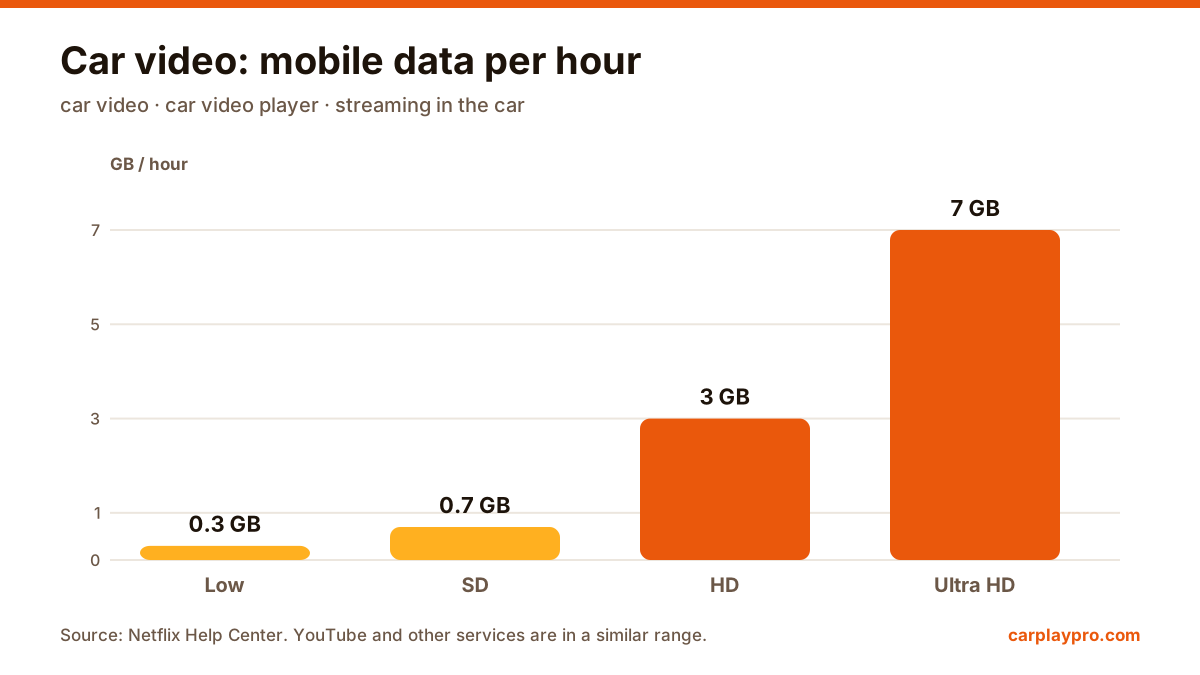
Live TV streams constantly, so it uses far more mobile data than music. An hour of a standard-definition channel can easily use several hundred megabytes, and HD more. If your plan has a limit, watch on Wi-Fi where you can, or pick a lower quality.
Live TV in the car is for parked moments and for passengers, the same as any other video. The driver should never watch while the car is moving. If you would rather mirror apps you already have on the phone, see how to mirror your iPhone to your car screen.
Apple TV in the car is possible, but not the way most people expect. What works with CarPlay, why mirroring shows a black screen, and the real options.
The real ways to play video on a car screen with an iPhone: USB files, screen mirroring, AirPlay in iOS 26, AI boxes and tablets, with data use for each.
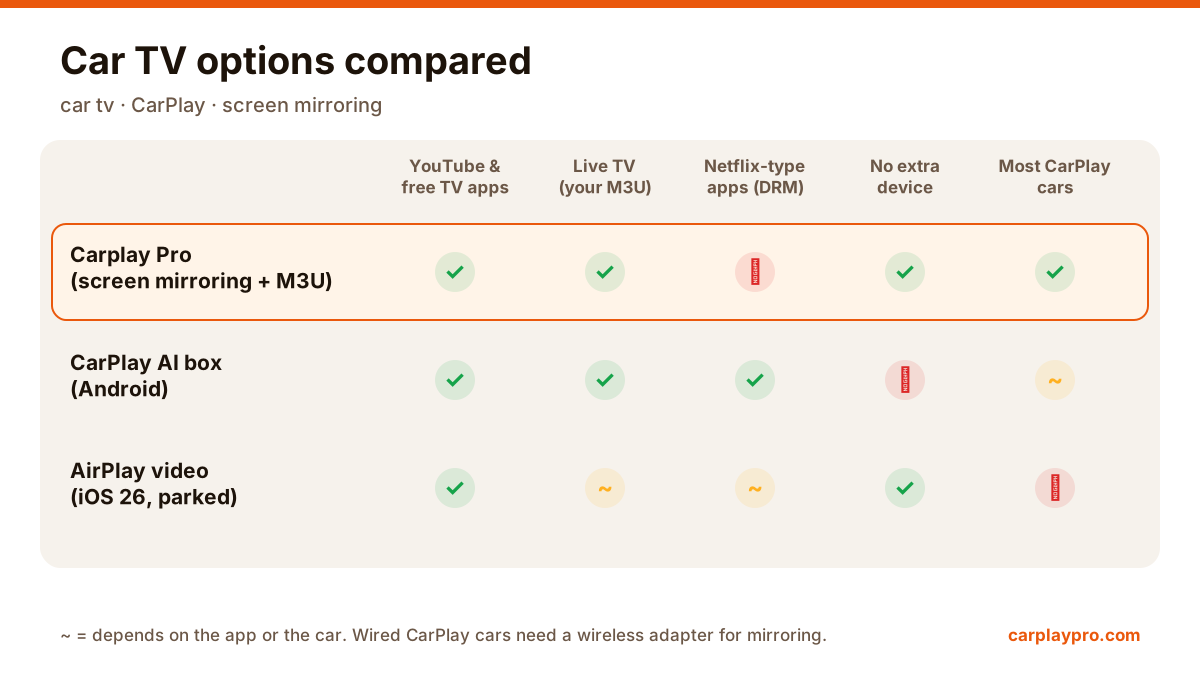
Want car TV on the dashboard display? The real options for watching TV in your car with an iPhone, what each needs, and which ones actually work.