Can You Watch Apple TV in Your Car? Apple TV and CarPlay
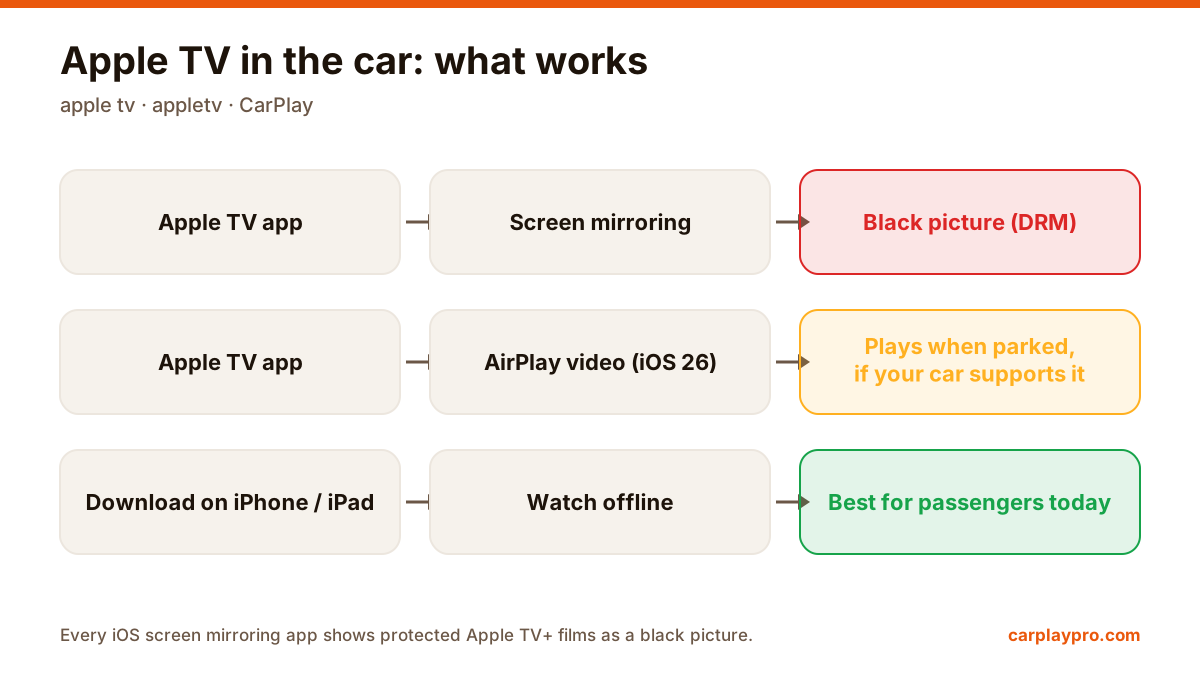
Apple TV in the car is possible, but not the way most people expect. What works with CarPlay, why mirroring shows a black screen, and the real options.
Mirror your iPhone to the car display with wireless CarPlay or an adapter. What you need, the setup, what to expect, and fixes for black screens and drops.
 Carplay Pro 5 min read
To mirror your iPhone to your car screen, connect the phone to the car through CarPlay (wireless, or wired with a wireless adapter), then start a screen mirroring app such as Carplay Pro. From then on, what you open on the iPhone shows up on the dashboard display.
The setup takes a couple of minutes the first time. The part that trips most people up is not the app but the CarPlay connection underneath it, so this guide spends some time on that too.
CarPlay on its own only shows apps that Apple allows on the car screen: maps, music, podcasts, calls, messages and a few others. Each app has to be built for CarPlay, and video apps are not in that list.
Screen mirroring works differently. It does not need the app to support CarPlay. It sends a copy of the iPhone screen to the car display, so a video, a social feed or a game that runs on the phone appears on the dashboard as well. That is why people use mirroring for things CarPlay will never show by itself, like YouTube while waiting in a car park.
Not sure which CarPlay your car has? If the phone connects to CarPlay without a cable, you have wireless CarPlay. If CarPlay only starts when you plug in the cable, it is wired, and you will want an adapter. Our wireless CarPlay adapter guide covers what to look for.
Before anything else, check that normal CarPlay works in your car. If CarPlay itself will not connect, mirroring cannot work either.
Start the car and turn on Bluetooth and Wi-Fi on the iPhone. Wireless CarPlay uses both: Bluetooth to find the car, Wi-Fi to carry the picture.
Wait until the CarPlay home screen appears on the dashboard before you go on.
Open Carplay Pro on the iPhone. The main screen has four sections: Mirror, Video, Music and TV. Pick Mirror to send the whole iPhone screen to the car.
If iOS shows a screen broadcast prompt, confirm it. That sheet comes from Apple, not from the app: iOS asks you every time an app wants to send the screen somewhere, so nothing is shared without your tap. A few seconds later the iPhone screen appears on the car display.
Leave the mirroring running and open whatever you want to see. A few things make it look much better on a car display:
A mirrored picture travels over Wi-Fi, so it is a fraction of a second behind the phone. You will not notice it with videos or music. With fast action games you might, and turn-based or slower games feel better on a car screen.
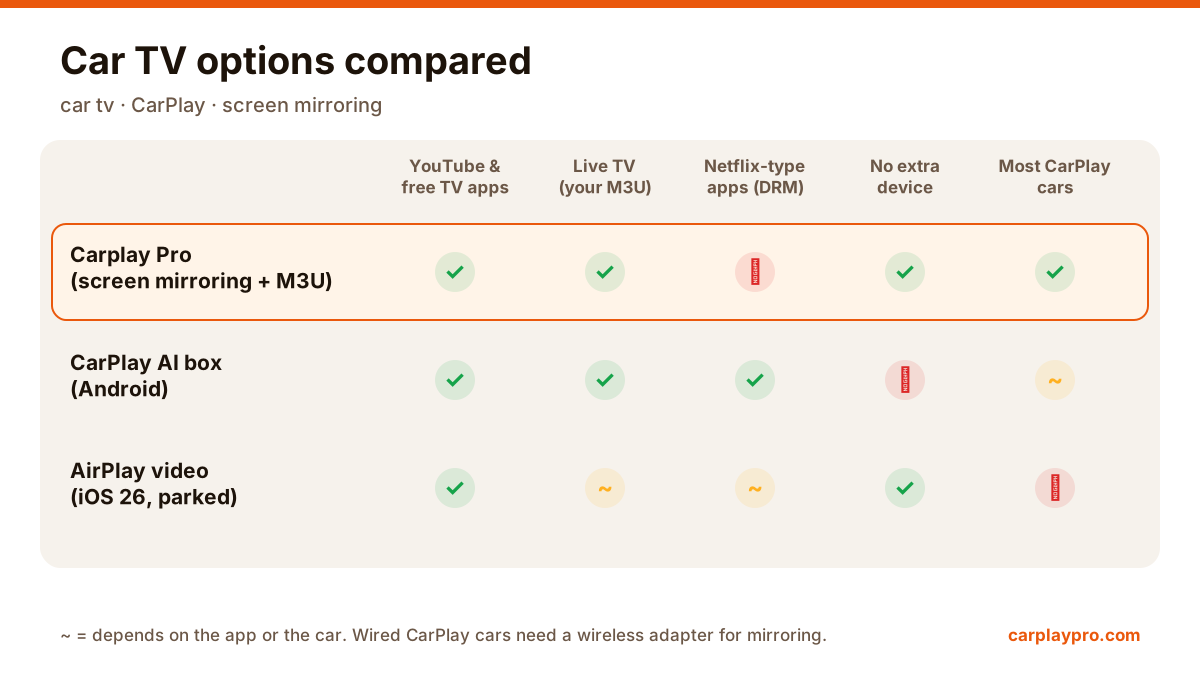
Some paid streaming apps protect their films from screen capture. If one of them shows a black picture on the car display while the sound keeps playing, that app is blocking mirroring; there is no setting in the car that changes this. YouTube, social apps, browsers, photos and most games are not affected.
Picture sharpness depends on the car. Many displays have a lower resolution than an iPhone, so small text can look softer than on the phone. Video looks fine; reading long articles is nicer on the phone itself.
Restart the car’s infotainment system (switching the car off, opening and closing the door, and starting it again usually does it) and restart the iPhone. Connect CarPlay first, wait for the CarPlay home screen, then start mirroring.
Wireless CarPlay is sensitive to distance and interference. Keep the phone in the cabin, not in a bag in the boot. With an adapter, keep it close to the port and update its firmware, which fixes most drops. Running a personal hotspot at the same time can upset some adapters, so turn it off as a test. If drops continue, forget the car (or adapter) in the iPhone’s Bluetooth and CarPlay settings and pair again.
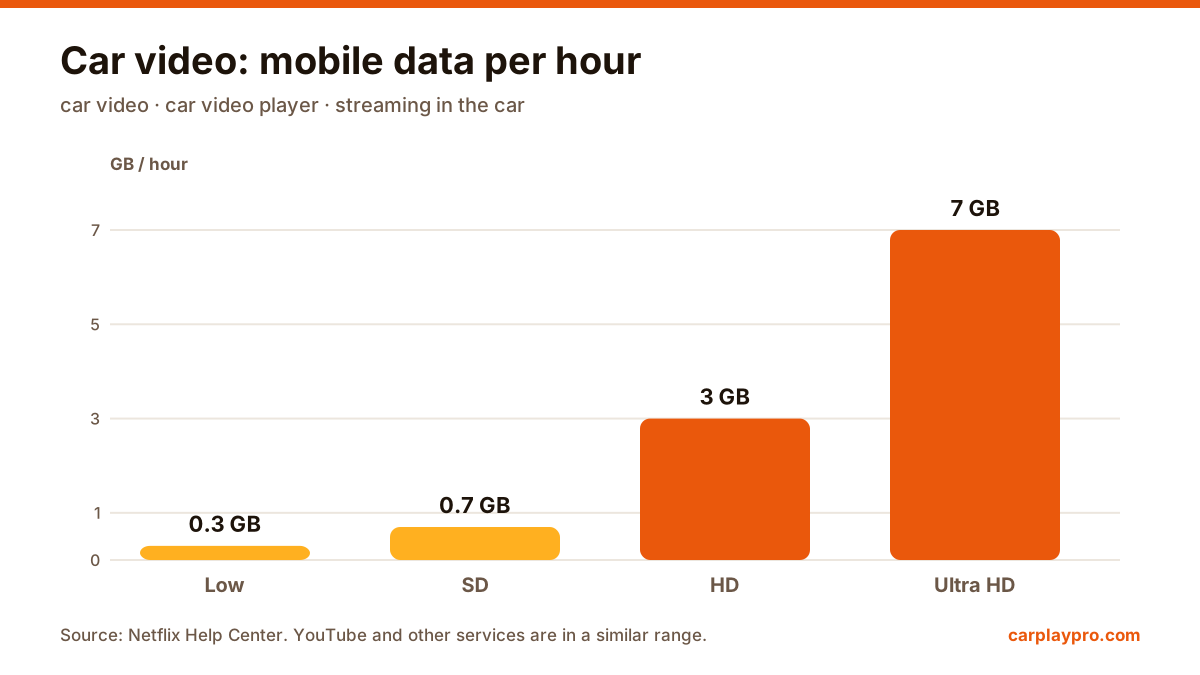
That is usually the internet, not the car. Lower the video quality, close apps that download in the background, and if you are on Wi-Fi, move closer to the hotspot.
Pick the car in Control Center’s audio output, raise the phone volume a little (both volumes count), and make sure the car’s audio source is CarPlay rather than radio.
Mirroring is for passengers and for when the car is parked: a lunch stop, waiting to pick someone up, an hour at an EV charger. The driver should never watch a screen while the car is moving, and local traffic laws always apply. If you want to start with video, our guide to watching YouTube on the car screen goes through it in detail.
Apple TV in the car is possible, but not the way most people expect. What works with CarPlay, why mirroring shows a black screen, and the real options.
The real ways to play video on a car screen with an iPhone: USB files, screen mirroring, AirPlay in iOS 26, AI boxes and tablets, with data use for each.
Want car TV on the dashboard display? The real options for watching TV in your car with an iPhone, what each needs, and which ones actually work.