Can You Watch Apple TV in Your Car? Apple TV and CarPlay
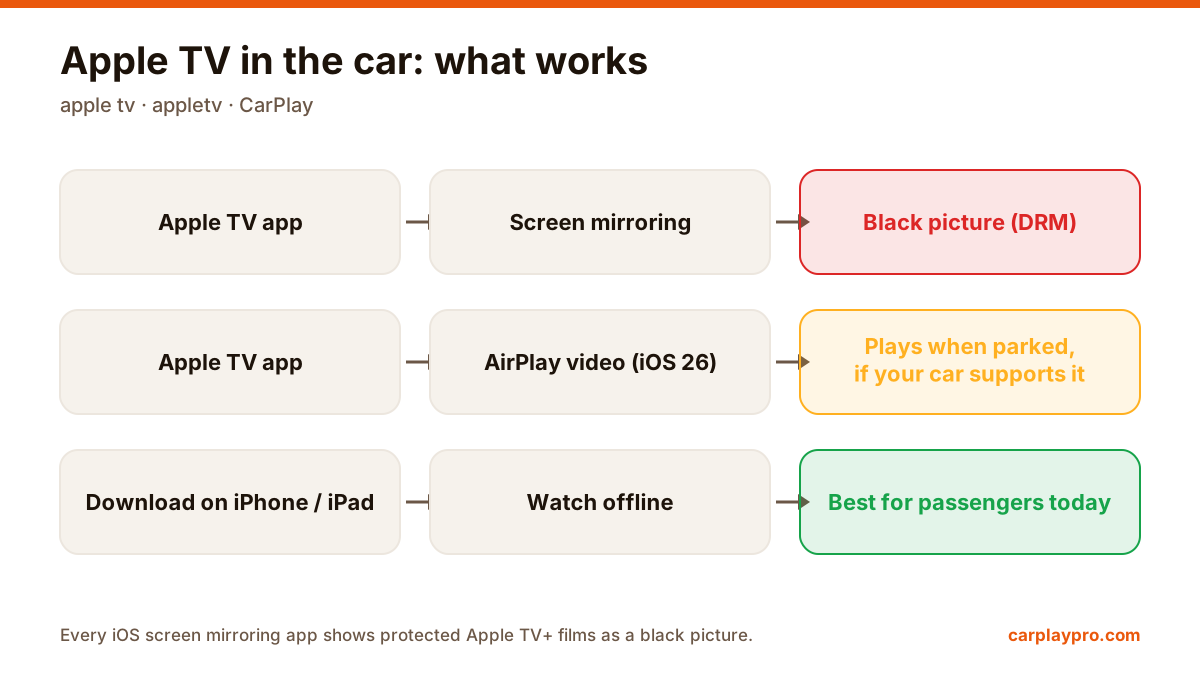
Apple TV in the car is possible, but not the way most people expect. What works with CarPlay, why mirroring shows a black screen, and the real options.
Standard CarPlay does not show YouTube, but you can mirror your iPhone to the car display. Here is how to set it up, plus tips for sound, quality and data.
 Carplay Pro 4 min read
You can watch YouTube on your car screen by mirroring your iPhone to the car display: open YouTube on the phone, and the same video appears on the dashboard screen. This is meant for when the car is parked, or for passengers, never for the driver while the car is moving.
CarPlay is built around driving tasks: navigation, music, podcasts, calls and messages. Apps only appear on the car screen if they belong to a category CarPlay supports, and video players like YouTube are not shown there in the usual way. That is a deliberate safety choice, and it is also why searching for YouTube on your car’s CarPlay home screen comes up empty.
Screen mirroring takes a different route. Instead of waiting for an app to support CarPlay, it sends what is on your iPhone’s screen to the car display. If YouTube is open on the phone, YouTube is what you see in the car. We explain the general setup in more detail in how to mirror your iPhone to your car screen.
Features can vary by car model and infotainment system. If you are not sure whether your car has wireless CarPlay, check your owner’s manual. If it only has wired CarPlay, our wireless CarPlay adapter guide covers what to look for.
From here you control everything on the phone. Skip, search or pick the next video there, and the car screen follows.
Car displays are usually wide. In portrait mode the video becomes a small strip in the middle with large black bars on each side. Rotating the phone and tapping full screen makes much better use of the space.
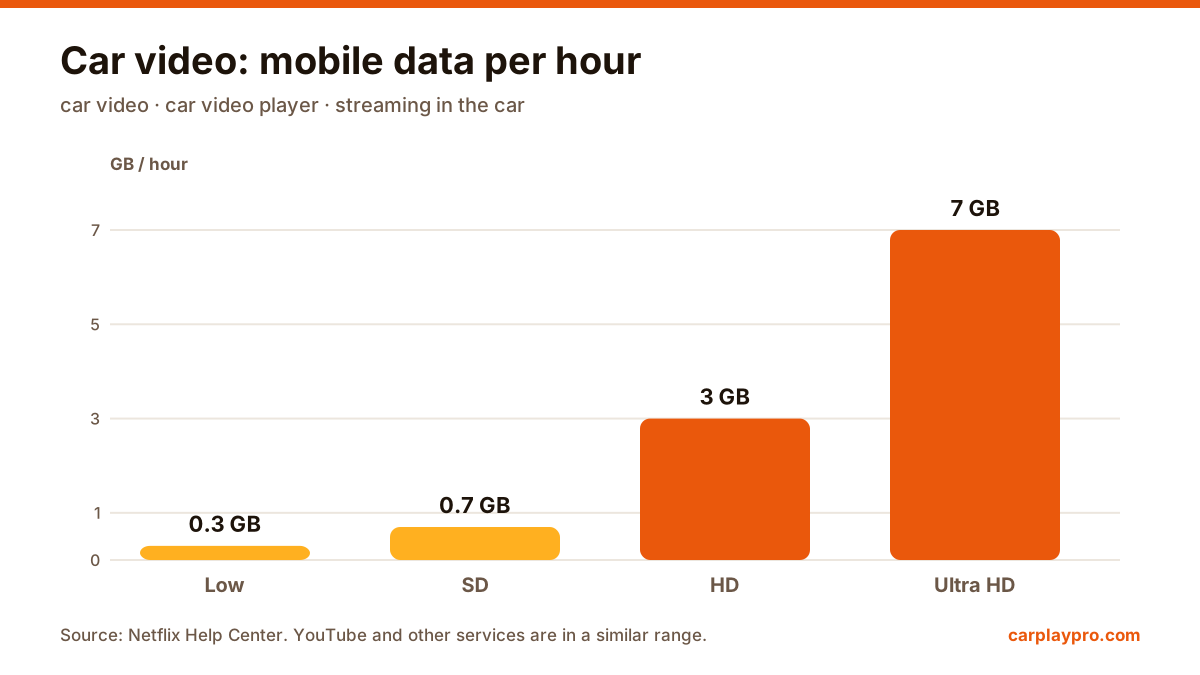
Higher quality looks sharper but needs more data and a stronger connection. If the picture keeps buffering, lower the quality in YouTube’s settings for that video. On a big hotel or service-station Wi-Fi you can usually go higher; on a weak mobile signal, go lower.
If the picture is on the car screen but the sound is coming from the phone, check the audio output in Control Center on your iPhone and make sure the car is selected. Turning the phone’s volume up a little can also help, since the car volume and phone volume both play a part.
Video uses far more data than music. If you do not have an unlimited plan, a few practical habits help:
Restart the car’s infotainment system (turning the car off and on usually does it) and restart your iPhone. Connect CarPlay again first, then open the mirroring app.
Stuttering usually comes from the internet connection, not the car. Lower the YouTube quality, close other apps that use the network, and move closer to the Wi-Fi source if you are on Wi-Fi. If you use an adapter, keep it close to the USB port and check for a firmware update.
Wireless CarPlay depends on a stable link between phone and car. Keep the phone inside the car, avoid running a personal hotspot at the same time if your setup struggles with it, and forget and re-pair the car in your iPhone’s settings if drops continue.
A small delay can happen with wireless connections. Pausing and resuming the video often brings them back in sync. If it keeps happening, restarting the mirroring session usually helps.
Video is for parked use and for passengers only. Never watch, or let the driver be distracted by, video while the car is moving, and always follow the traffic laws where you are. The moments that work best are the long ones: a lunch stop, waiting outside school or the airport, or forty minutes at an EV charger with a half-finished series.
Apple TV in the car is possible, but not the way most people expect. What works with CarPlay, why mirroring shows a black screen, and the real options.
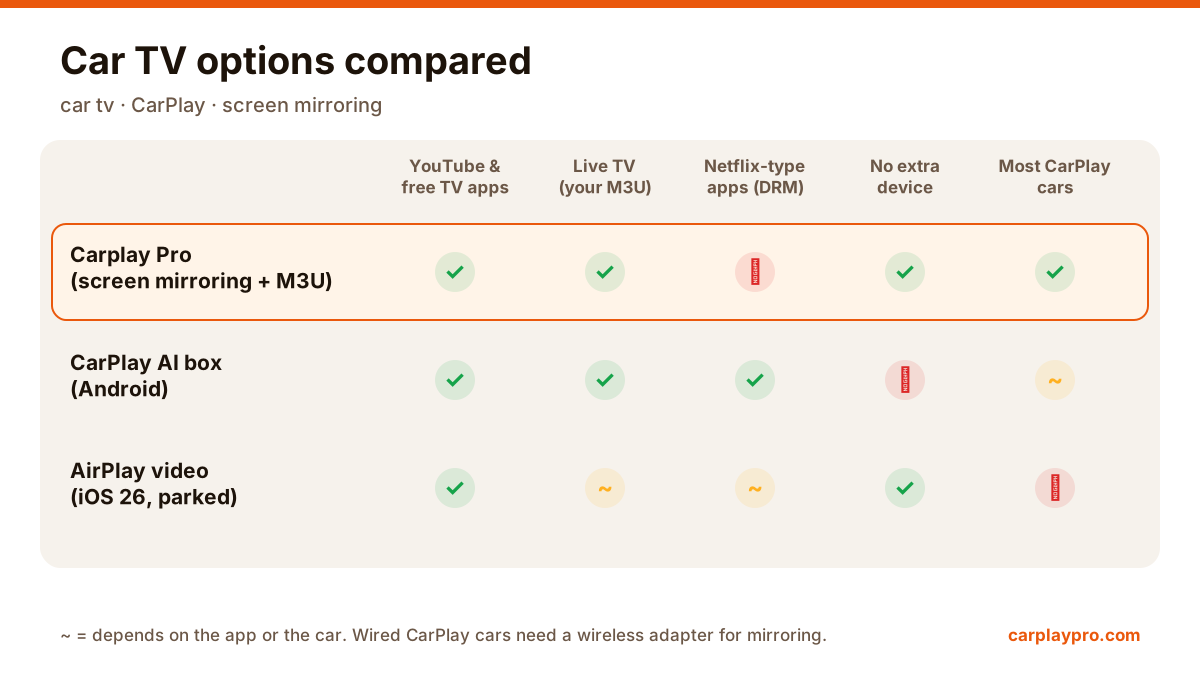
The real ways to play video on a car screen with an iPhone: USB files, screen mirroring, AirPlay in iOS 26, AI boxes and tablets, with data use for each.
Want car TV on the dashboard display? The real options for watching TV in your car with an iPhone, what each needs, and which ones actually work.