Can You Watch Apple TV in Your Car? Apple TV and CarPlay
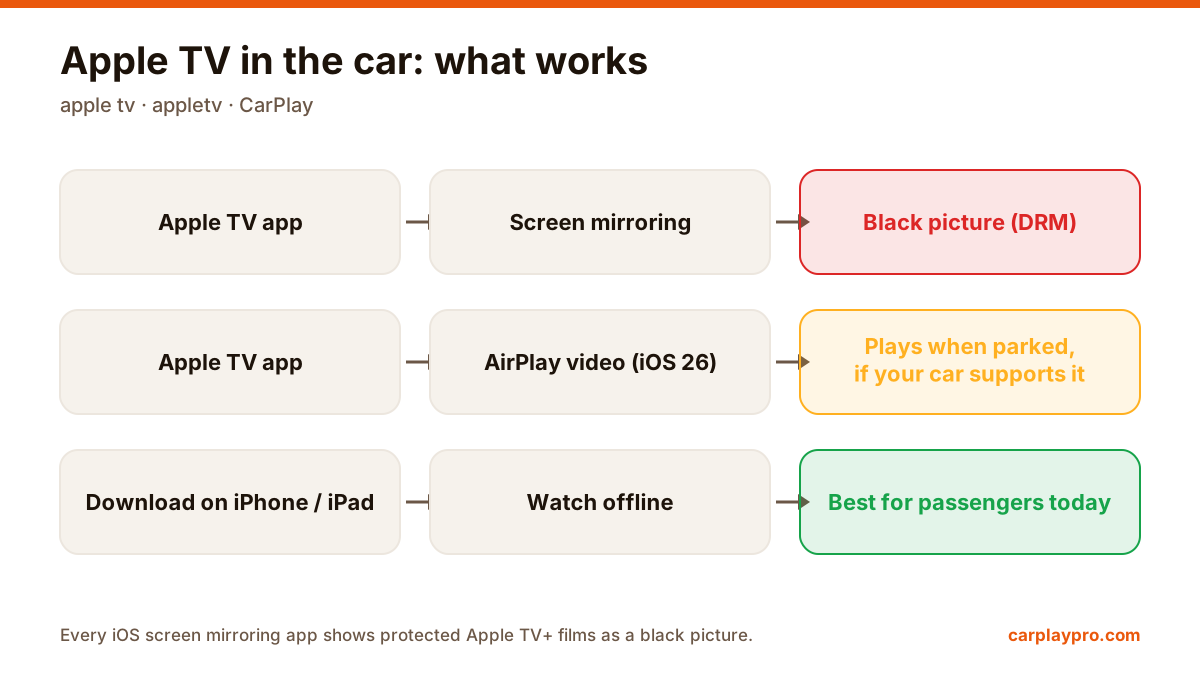
Apple TV in the car is possible, but not the way most people expect. What works with CarPlay, why mirroring shows a black screen, and the real options.
iOS 26 brings widgets to CarPlay. How to add, arrange and turn off car widgets step by step, which ones are worth it, and what widgets cannot do.
 Carplay Pro 2 min read
To add widgets to CarPlay, update your iPhone to iOS 26, then go to Settings > General > CarPlay, choose your car, open Widgets and tap Add Widget. In the car, swipe right on the CarPlay home screen to see them. You set everything up on the iPhone, not on the car screen.
CarPlay widgets (“car widgets” in a lot of searches) are one of the most useful CarPlay changes in years, but they are often confused with something they are not. Here is how to set them up and where their limits are.
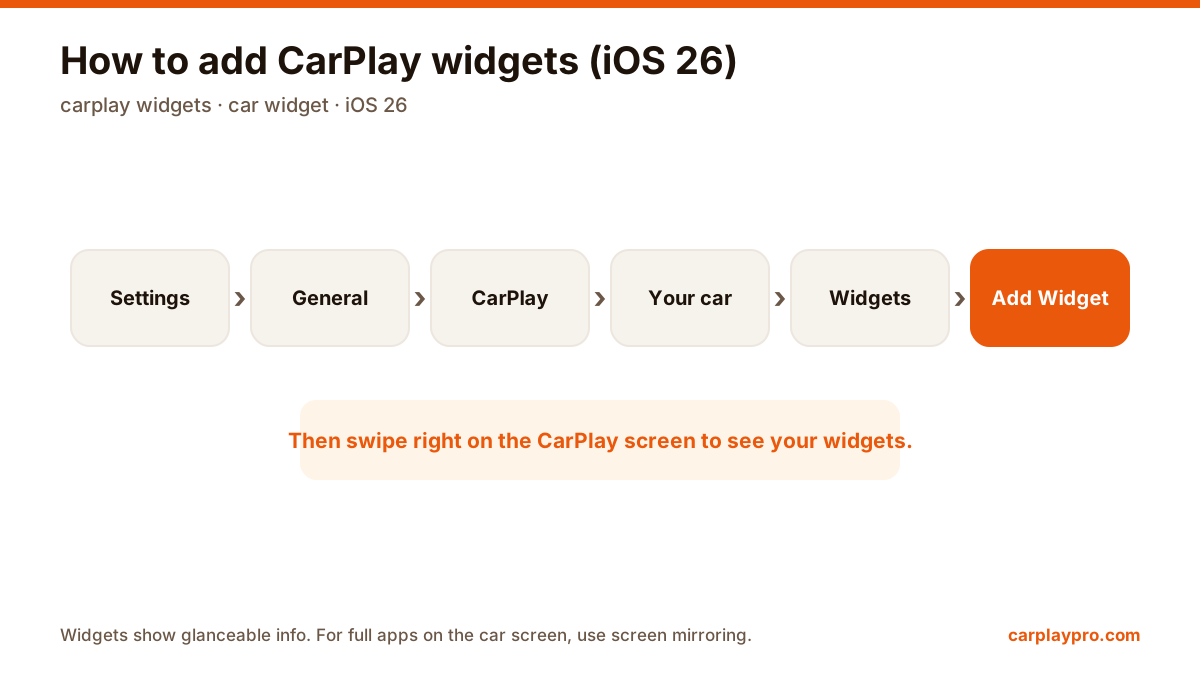
The CarPlay widgets path in iOS 26. Menu names can differ slightly between iOS point releases.
How many widgets fit depends on the size of your car’s screen. A wide display shows more side by side than a small one.
iOS 26 can rotate widgets on its own and suggest new ones based on what you are doing. Some people like it; others prefer a fixed layout they can find without looking twice. If you are in the second group, turn off Smart Rotate and Widget Suggestions in the same Widgets menu.
Third-party widgets vary. Many apps have not optimised their widgets for the car yet, so the gallery may show some that look cramped on a wide screen.
Widgets show information; they do not run apps. You cannot watch a video, scroll a social feed or play a game in a widget, and Apple keeps it that way on purpose.
If you want to see a full app on the car screen while parked, that is a job for screen mirroring, not widgets. Carplay Pro mirrors the whole iPhone screen to the car display, so the apps that will never get a CarPlay version, YouTube, social media, games, still show up on the dashboard for passengers or during a break. The difference is explained in CarPlay screen mirroring explained.
Apple TV in the car is possible, but not the way most people expect. What works with CarPlay, why mirroring shows a black screen, and the real options.
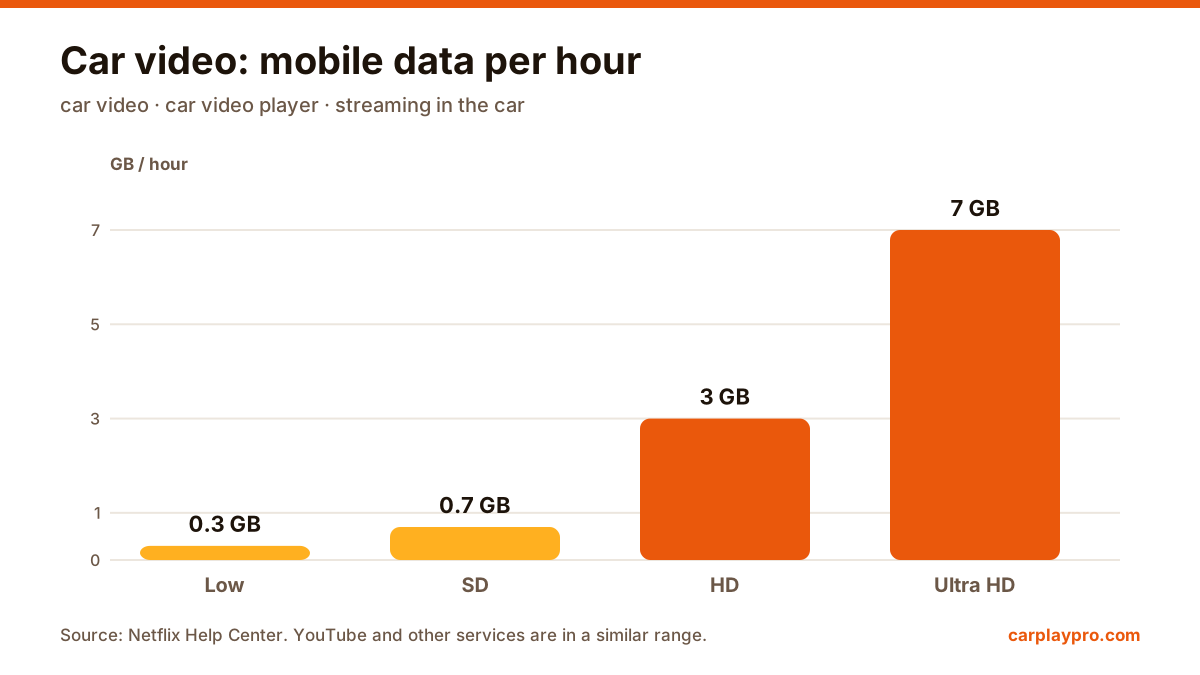
The real ways to play video on a car screen with an iPhone: USB files, screen mirroring, AirPlay in iOS 26, AI boxes and tablets, with data use for each.
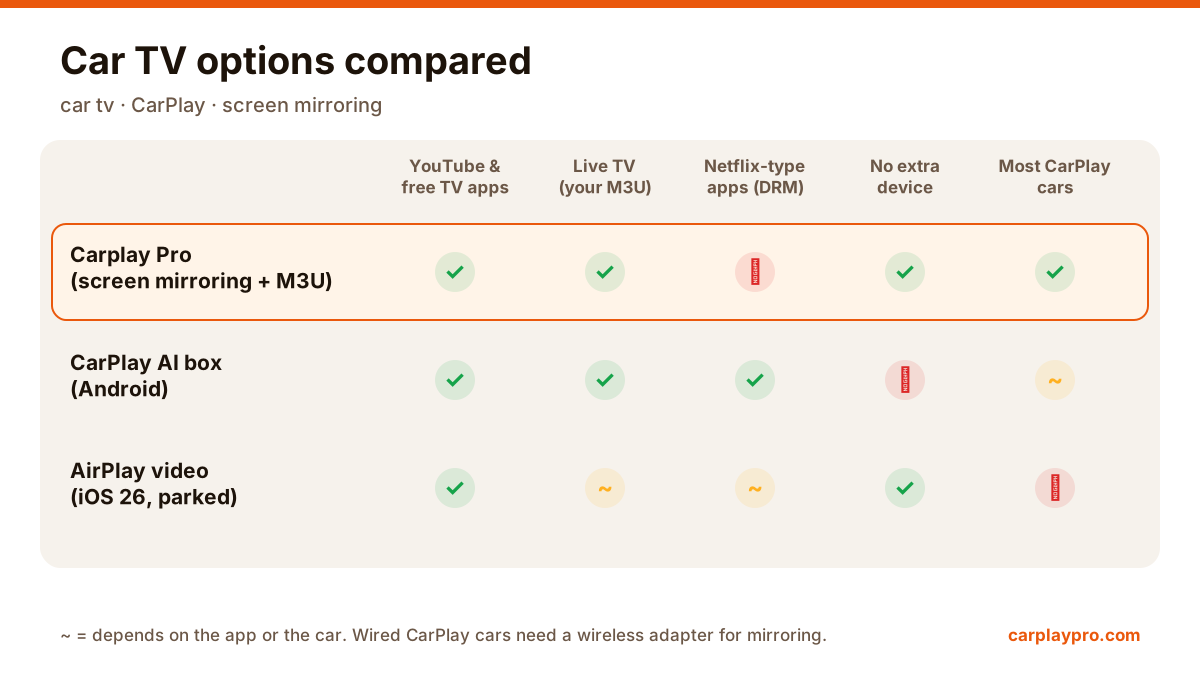
Want car TV on the dashboard display? The real options for watching TV in your car with an iPhone, what each needs, and which ones actually work.